Pages

This is default featured slide 1 title

Lorem ipsum dolor sit amet, consectetur adipisicing elit, sed do eiusmod tempor incididunt ut labore et dolore magna aliqua. Ut enim ad minim veniam. blogger theme by BTemplates4u.com.

This is default featured slide 2 title

Lorem ipsum dolor sit amet, consectetur adipisicing elit, sed do eiusmod tempor incididunt ut labore et dolore magna aliqua. Ut enim ad minim veniam. blogger theme by BTemplates4u.com.

This is default featured slide 3 title

Lorem ipsum dolor sit amet, consectetur adipisicing elit, sed do eiusmod tempor incididunt ut labore et dolore magna aliqua. Ut enim ad minim veniam. blogger theme by BTemplates4u.com.

This is default featured slide 4 title

Lorem ipsum dolor sit amet, consectetur adipisicing elit, sed do eiusmod tempor incididunt ut labore et dolore magna aliqua. Ut enim ad minim veniam. blogger theme by BTemplates4u.com.

This is default featured slide 5 title

Lorem ipsum dolor sit amet, consectetur adipisicing elit, sed do eiusmod tempor incididunt ut labore et dolore magna aliqua. Ut enim ad minim veniam. blogger theme by BTemplates4u.com.

Showing posts with label Computer tricks. Show all posts

Thursday, 29 August 2013

12 Free Websites To Download Youtube Videos In 3GP For Mobiles


 Although YouTube has the option of viewing videos online, still many of us feel more comfortable downloading them. This is because you may not get good speed while viewing videos online. It is suggested to download YouTube videos in 3GP to enjoy uninterrupted and good quality videos. Whether you want to download a video for a one-time watch or are fond of making a collection, downloading them in 3GP is the best option.
Below mentioned are a few websites
That help you download the YouTube videos in 3GP:-

Savevid
Savevid helps you download your favorite YouTube videos in 3GP format. This website also gives you a choice of selecting the quality of the video you intend to download, for instance there is an option of high quality, low quality and medium quality. Choose the picture and sound quality you want. You can also download YouTube videos in MP4 and FLV formats from this website.


KeepTube

This is another site that enables you to download YouTube videos in the 3GP format. The downloading process is smooth and the picture quality you get is quite fine. You can also download videos in MP4 and FLV formats from this website.

KeepHD

This website allows you to download YouTube videos in 3GP format. You can also watch these videos online. These videos can be downloaded in the FLV as well as the MP4 format. Though you can download YouTube videos in the 3GP format from this website, however it is said that the picture and sound quality of the videos downloaded in this format is not very fine.

Gazzump

You can download 4 videos per day from this site if you are not paying for the account. YouTube videos can be downloaded in 3GP as well as MP4, MP3, WAV, FLV and various other formats from this website.
YouTubeKeep
Similar to the other websites mentioned above, even this website allows you to download YouTube videos in 3GP format. Apart from this, you can also download videos in the MP4 and FLV formats.

Zamar

Zamar enables you to convert your YouTube video into 3GP format. However, unlike the other websites, you can’t download them by just clicking at the link. On making a download request you would be asked to provide your email id. You would then receive an email with the download link. From this website you can also download a YouTube video in various other formats such as RMVB, MP4, etc.

Cupish

This website also helps you download YouTube videos in the 3GP format. However, this site is only available on the mobile. This is the reason why bigger videos cannot be downloaded from Cupish.com.

Vixy

With this website also you can download YouTube videos in 3GP. However, this site supports 3GP format only for Mobiles. You cannot download YouTube videos in 3GP format on your PC, using this website.

Savetube

The Savetube website also allows you to download YouTube videos in the 3GP format. This site also gives multiple quality options. You can select the one that you think would suit your requirement.

Clipnabber

If you wish to download YouTube videos in 3GP format, Clipnabber is a good website to accomplish this task. All you need to do is to type the YouTube video URL on this site. This site also works for some other websites such as dailymotion, metacafe, etc. It allows downloading videos even in other formats such as MP4, FLV.

Icyvideo

This is quite similar to the one mentioned above. The Icyvideo website also gives the option of entering the YouTube video URL for downloading the video. You will get the option of downloading the YouTube videos in 3GP, MP4 as well as FLV format. You can choose the one you want. Using this site, you can download videos available on certain other sites as well.

Tubeminator

This website also gives the option of downloading YouTube videos in the 3GP format by entering the YouTube video URL.

Tuesday, 23 July 2013

Vodafone 3G VPN Trick May Confirmed Working , 2013


Hello Guys,
Sharing with u New VodaFone Trick . 100 % Working .


!!Confirmed Working Fine in Delhi and Other states too !!

You can check in Your state.

Features...

1.Use in Rs.2 Balance (No Need of any plan)
2.No Disconnection Problem is there .
3.Based on Fastest  Protocol Speed Upto- 500 KBPS+
4.No speed capping
5.No sim blocking
6.Works on blocked sim also
7.Registration Required (Register on Kebrum VPN Official site)
8.100% Working in Northern states of India
9.Supports HTTPS and HTTP protocol
10.Certificate Error Solved
11.Working Both in 2G (GSM) and 3G (UMTS) Mode
12. Apn : www (Try @ zero Delhi users) or portalnmms


Steps ...

1.Download The Attachment (BELOW)
2.Install NMD VPN
3.Windows 7 and Windows 8 Users RUN NMD VPN as the Administrator
4.Just Connect and Enjoy...

TO DOWNLOAD- CLICK HERE

                                                 Password for .rar : voda

Friday, 12 July 2013

Speed Up Your Computer with Run commands


Learn how to speed up your computer with simple RUN commands.This can improve your PC processing speed and simultaneously you can save loading time of computer files like MP3 etc and system Drives.Before going to know the commands to operate let us know some of the mistakes we do that kills computer speed.

Avoid Doing this:

These are the most common mistakes that can kill the processing speed of the computer.So avoid those and gain the speed.
Never keep all the files/folders on the Desktop Screen.
Don't add too many side bar widgets.
Don't add animation images on Desktop.
Avoid too many Start Up programs.
Avoid keeping unused programs which occupies the disk space.

Follow these Steps:

Follow the steps given below to improve computer speed and keep your computer safe.
Use Strong anti-virus to keep away your computer from Mall-ware and spyware.
Never log out system with out closing all the applications and folders.
Use Disk space cleaner tools to free disk space.
If you want to delete a file permanently use SHIFT+DELETE
Don't open too many folders or application at once.
Most common but yet we should remember this Refresh the computer every time when you log in.This can be done either by Functional key F5 or right click on the desktop screen and then click "Refresh" option.

RUN COMMANDS TO SPEED UP COMPUTER:

Use the following run commands to remove the systems temporary and recent files whenever you feel that system is working slowly with that you can  improve computer  processing.

Open Run command and type the following commands one-by-one and delete those files and folders permanently from your computer.Some of the files won't delete then let it  be and skip those files.


TRY ALL THESE GIVEN BELOW COMMANDS TO SPEED UP YOUR PC-


  1. temp
  2. %temp%
  3. prefetch
  4. recent
  5. ipconfig


Friday, 5 July 2013

Reliance 3g hack 2013

Gprs Tricks for Reliance mobile @ January month,2013-FREE

Hi,there are many gprs tricks coming which some of are working fine and few of them aren’t working.-Due to the spreading of this kind of tricks,the officials from the respective operator bans or block the loop hole ,so the tricks expired.

This is the Working Tricks for November ,that we’ve found in some forums.

Free gprs for Reliance First Trick:
Follow the below simple steps and check it,ll work fine ,post your comments.

Just Create New Settings :

Apn – Reliance.
Proxy – 190.90.36.191
Port – 8000
Home Page – www.google.com

#2 – Free GPRS Tricks For Reliance Mobile
Here is the second tricks for Reliance users to use free gprs to browse free ,you know the speed is great,try this tricks and post your feedback.

reliance 3g Trick

This Trick is Default Browser Trick

Use Settings :

Apn – rcomwap
Proxy – 10.239.221.5
Port – 8080
Home Page – http://0.facebook.com.genius.p.gp or
http://cms.wdsap.ricinfo.com.genius.p.gp


Thats it,you can browse free from your reliance mobile.

The Top 25 Fun Google Tricks

Maybe to help dispel the wacky notion that geeks are boring, or maybe to prove that Search isn’t all work and no play and Sergei and Larry are by no means dull boys, Google every-once-in-a-Google-Moon leavens their spam-fighting and user experience-enhancing with some honest-to-goodness, good clean Fun Google Tricks.

funny google gravity trick


1. Google Gravity
Quite simply, this is Earth-bound physics “infused” into Google’s interface: with “gravity,” the visual elements you commonly find on the interface, such as the search bar, the “I’m feeing lucky” button, and everything else fall down like a stack of bricks on the bottom of the browser. You can even “pick up” and “throw” the search results at the “walls” or just simply mess with them. This is no longer implemented on Google, but you can still see how it worked through the link below.


2. Let me Google that for you
LMGTFY or Let Me Google That for You is a somewhat tongue-in-cheek service made for those of us who are too lazy to use Google. Upon entering a search query, instead of results, you get a link that you can then mail to your lazy recipient.

Clicking on the link launches the actual search: thus, in this perigrinatory manner, you have Googled it for them. All they have to do is click the link. A beautiful example of technology making things more complicated for us.

3. Google Chuck Norris
There was a time when the internet raged with all imaginable Chuck Norris jokes. So naturally, Google itself dipped its hand in the meme with the Chuck Norris Google Trick. Search “Chuck Norris,” and Google returns a familiar Chuck Norris joke: “Google won’t search for Chuck Norris because it knows you don’t find Chuck Norris, he finds you.”

4. God on Google Earth
Sometime in 2010, people around the world went “God crazy” when Google Earth supposedly had taken a “snapshot” of “divine beings” while crossing a mountain zone in Switzerland. There’s no definite answer, of course, but the buzz it created was testament to how the entire online community could get excited over a blurry photo, like they do with pictures of cats.

5. Google Pac-man
A treasure-trove of fun Google tricks won’t be complete without mentioning Google’s Pac-Man doodle. On May 22, 2010, the 30th anniversary of the classic game, people around the world woke up to a search engine sporting an actually playable mini-version of Pac-Man. And naturally, hundreds of millions of people spent hours playing the game, basically slowing down productivity to a halt.

6. Google Mirror
This fun Google trick simply displays a mirror image of everything you might see when doing a search on Google.

7. Google Hacker
Those who are familiar with the so-called language of hackers (1337 5p3@k or “leet speak”) may love using this Google trick to amuse haxor pals or confound the squares. Sure, the trick isn’t much trickier than  swapping letters for moderately analogous numbers or ASCII characters — e.g. “G” becomes “6″, “E” becomes “3″, “N” becomes “||”, etc — But it’s still fun symbol-play, and still somehow feels like a secret language, despite that we all now w00t every time we are overcome with joy.


8. Google Barrel Roll
A Fun Google trick that is still accessible today, the barrel roll means exactly as it says: make Google do a barrel roll. Simply type “Do a barrel roll” into the search bar and Google dutifully obeys. Warning: This Especially Fun Google Trick is known to make babies cry and grown men squeal with delight.


9. Google Rainbow
Like a handful of the other Fun Google Tricks included in this list, this third-party website that has no official affiliation with Google but only offers its two cents in letting people experience the search engine in a delightful way. If you like colors, this site delivers it—although it may remind you more of the internet circa early-1990s, with all its animated GIFs.
10. Google Sphere
Google Sphere turns every little element you commonly see on Google’s homepage into a swirling “sphere.” It’s pretty cool, but it’s no longer implemented on Google. To see how it once worked, just visit the link below.

11. Google Spam
Probably not an actual Google trick but more a manifestation of how Google offers users related information. In the folders in your Gmail account, you usually see a one-line text advertisement from Adsense. But in the Spam folder, what you’ll see is a real Spam recipe—yes, it’s a recipe for something you can actually eat.

12. Google Tilt or Askew
Typing the word “tilt” or “askew” on Google (specifically if you’re using the Chrome or Safari browser) commands the search engine to “tilt” the whole screen slightly to the right.

13. Dragon Slayer
Those who use Google Docs will find this mildly amusing. If you create or open any spreadsheet, pressing Shift+F12 pops up a message that says: “Dragon slain! Congratulations, you’ve slain the dragon! ]B=8}”.

14. Google Ninja
Who doesn’t love ninjas? Google definitely does. If you’re using your Google Reader feed, press the keys “up, up, down, down, left, right, left, right, B, A” and a ninja (or a couple of them) appear!

15. All the Google Doodles
Over the years, Google has released several of its “doodles”—a temporary re-design of the Google logo made as a tribute to a historical event or the birthday of someone who has changed the world for the better. Through the link below, you’ll find all of the Google Doodles, not only the American versions.

16. Recursion
Type “recursion” into the Google search bar and Google in return asks, rather recursively: “Did you mean recursion?”

17. Google’s Nessie
Use the beach theme with your iGoogle homepage, then very patiently sit there and wait until the clock strikes 3:14 AM. Or you can just more the clock forward and see the monster” that comes out. If you actually waited several hours until 3:14 AM, finally seeing the monster might not totally amuse you.

18. Flight Simulator
What started as an Easter egg became so well-loved that Google eventually turned it into a regular feature of Google Earth. Just click Tools > Enter Flight Simulator, and you’re off to make a round-the-world tour. It would have been more awesome if Google Earth also has a “rocket launcher” feature with unlimited ammo to go with it, but maybe next time.

19. Google MentalPlex
One of the earliest (if not, the earliest) Google April Fool’s joke (this one surfaced in 2000) is the Google MentalPlex. Instead of typing their queries into the search bar, unwitting users were “invited” to just “think” their questions while gazing intently into the MentalPlex circle (apparently to allow Google enough time to “read” your brain signals and transform them into actual search engine queries), then click into the circle to see the results. Even Google’s CEO and co-founder Larry Page called MentalPlex “a quantum leap in finding what you are looking for on the Internet. Typing in queries is so 1999.” It was fun. Especially if you remember that this was the early days of Google, long before the billion-dollar behemoth called Adsense and what-have-you.

20. Google Anagram
Step 1: Type “anagram” into the Google search bar. Step 2: Google asks if you in fact mean “nag a ram.” Step 3: Proceed to LOL.

21. The disappearing “OO”
This is not really a Google fun trick per se, but you can wow your clueless friend with this little “magic.” Click anywhere on the white space of the Dark Arts page (URL in linked title above), then pretend to rub your two fingers on the two OO’s on the Google logo for 2 to 3 seconds, and the O’s will vanish. To bring it back, do the same thing: Click anywhere again and the OO’s will reappear, after which you will be redirected to the real Google.

22. Annoying Google
The “Annoying Google” trick is not really annoying under normal circumstances. Even if you’re in a hurry, Annoying Google’s way of messing up the words as you type them (randomly changing from upper-case to lower-case) is not really annoying. But if you want to see this in action and determine for yourself if it’s really annoying or simply mildly amusing, visit the link below.

23. Epic Google
Epic Google is Google on steroids — not the enhanced performance however, just the obscene bulk. Once the page loads, the logo, search bar, “Search” and “I’m Feeling Excessive” buttons, all swell until they either float off the page or you type a search and get the heck outta there.

24. Weenie Google
Weenie Google is the flip side of Epic Google. Once the page loads, the logo, search bar, “Search” and “I’m Feeling Inadequate” buttons,immediately begin to shrink to inscrutable and barely-usable sizes. Is fun, no?

25. Chicken Rolling
“Rick-rolling” is a popular prank that involves redirecting the unwitting user to a video of music artist Rick Astley singing one of his hit songs (most often “Never Gonna Give You Up”). Chicken-rolling, on the other hand, is like Rick-rolling, but with one dancing man eating fried chicken legs. To subject your unwitting friend to this prank, type the code “2204355” then click “I’m feeling lucky.” See what happens.

All USSD Codes For All Networks


Aircel, Airtel, Reliance, Bsnl, Vodafone, DoCoMo, Idea All USSD Codes


Hi Frnds today I Am sharing a very impotant and useful Ussd codes ( Unstructured Supplementary Service Data) of few main networks like reliance,aircel,docomo,airtel,idea,vodafone. Ussd code that all of us need sometime and as there are so many ussd code and we can't memories all so guy we simply putting all at one place so that whenver you want then you simply checkout our blog and use these below given ussd code......

HOW to use USSD code ?

to use this code , press CALL Green button.

Aircel USSD Codes -


Aircel Customer Care Number - 121 or 123
Your Aircel Number - dial *131# or *1#
Balance Check - *125# or BAL to 121
Local Mobile Calls Balance - *111*4#
Internet Setting - PI to 121 or ALL to 121
Check GPRS Balance - *126*4# or *126*1# or *301#
3G Activation - START 3G to 121
Switch Off - *21*904#
DND Service - DND to 1909
Rate Cutter - 1215 or *122#
e-Recharge - *124*(your aircel number)#
Value Added Service - 1214
IMIS no - *222# or *2# or *214#
Aircel free 3G Service - *122*5*1# or *122*456# ( 6 am to 9 am IST till 15th May)
Aircel Free Hellotune - UL to 5800000 ( not confimed )
Free Sms Message Center No - +919808932698 or +91905063222 or +919050563221
Balance Transfer - *122*666#

Airtel USSD Codes -


Airtel Customer Care Number - 121
Airtel Voucher :- *101*your voucher card no#
Know your mobile number - *282#, *121*9# ,  *140*1600#,  *400*2*1*1*0#*121*9# , *121*11# for 3G,  *121*11# for 3G &, Just send a blank sms to 59103.
Airtel Complaint no - 198
DND Service - dial 1909 ( Activation or Deactivation )
Balance Check - *123#
Mobile Office Activate or Deactivation - *567#
Airtel Gift Service - *141#
To check Airtel 2G data balance :- Dial *123*10#
To check Airtel 3G data balance :- Dial *123*11#
Twitter Service - *515#
Facebook service - *325#
Daily pack 2G internet  - *555*2#
Recharge - dial 123
Airtel live Setting - LIVE to 52567
Gprs Packs - MRP GPRS to 51619
Mobile Portability - PORT to 1909
3G Activation - 3G to 121
Airtel Callertune Trick - 543211888

Balance Transfer - *141# and Choose Options.
Receive Airtel Live Settings :- SMS LIVE to 52567receive Airtel Live Settings :- SMS LIVE to 52567
To Stop any services - SMS STOP to 121/1210
To Start any services - SMS START to 121/1210

Reliance USSD Codes -


To know Mobile Number : *1#
To Check balance or validity period : *367# ,*333*1*1*1#, *306# &, *702#
Special Packs :- *777#
Caller Tunes – *999#
Packs :- *123# , *321#
Latest Balance information :- *333*1*2*1#
VAS balance :- *333*1*4*1#
Activate Caller Tune :- *333*3*1*1#
Deactivate caller tune :- *333*3*1*2#
Local Call balance :- *367*2#
common access no. or admin menu :- *369
GPRS data balance :- *367*3#
GPRS data balance for check type :- "MBAL" and send to "55333" ( don't put -- " " )
Reliance customer care :- *333 , *369
Activate Miss Call alert :- *333*3*2*1#
Deactivate Miss call alert :- *333*3*2*2#
For GPRS setting :- "ALL" to "55100"
Reliance Voucher :- *368# or *305*14 digit pin# and call info 58401

Free Internet :- *123*099#


Bsnl USSD Codes -


To know your Mobile Number - Dial 164 and call or *8888#
Balance and validity details - *123#
GPRS data balance check - *123*10#
SMS local - *123*1#
National sms - *123*2#
Network call - *123*5#
Local network call - *123*6# (data bal check for UP)
Night GPRS pack - *123*8#
Video call bal - *123*9#

Customer care Eastern region - 9400024365
FnF Numbers Enquiry - Dial *124#
SMS Balance Enquiry - Dial *125#
Voice Packs Info - (RC200) : *126#
Last Call Charge Details - *102#
Data Balance Enquiry - *234#


Vodafone USSD Codes -


Vodafone Customer Care Number - 111 or 198 (Complaint No)
Main Balance Check - *141#
Gprs Balance Check - *141*9# or *111*6#
Know 3G data card balance :- *111*5*2#
Your Vodafone Number - *121*0# or *555# or *8888# or Dial 164 or *111*2#
SMS Balance - *142#
Call Balance Check - *145#
3G Activation - Prepaid-> ACT 3G to 144, Postpaid-> ACT 3G  to 111
Gprs balance data balance :- GPRS to 144
Night GPRS balance :- *123*8#
20 MB 3G plan :- *444*8# (for old plan)
GPRS PACKS-->
1 day GPRS pack - *121*05#
3 days GPRS pack - *121*14#
7 days GPRS pack - *121*25#
15 days GPRS pack - *121*49#
1 month GPRS pack - *121*98#
3G GPRS Packs -->
5GB 1 month 3G - *121*851#
8GB 1 month 3G - *121*1251#
DND Service - dial 1909 then choose option Activation or Deactivation
Rate Cutter - *121*10# and 10 paise per min activated on your mobile.
Hellotune Trick - dial 5525 or 54206090 and select song Activated in your mobile.

Balance Transfer - *131*<Amount><Receiver No>#

Idea USSD Codes -


Idea Customer Care Number - 12345 or 198 (complaint no)
Balance Checker - *123# or *130# or *212#
3G Activation - ACT 3G to 12345
Activated Service For idea Live Tv - 3GTV To 54777
Activated Service For idea GPRS - FRESH To 4666
Deactivated Service For idea Cricket - UNSUB ONDCKTPOR To 55456
Idea Service Number - *147#
Idea GPRS Setting - SET to 54671
Hunny Bunny Hellotune - HB to 56789
Your Idea Number - *100#
Check Mobile Number :- *789# or *100# ( For Karnataka )
SMS Balance - *161*1# or *451#
DND Service - START 0 to 1909 or Call 1909
Balance Transfer - *567*<receiver no><space><Amount>#

Transfer Limit - 10 to 50 Rs.

DoCoMo USSD Codes -


Know Your Mobile Number - *1#
Balance - *111# or call 12525
Internet Balance - *111*1#
Customer Care  121 or 198
1909 or sms START DND to 1909
Recharge - *135*2<Recharge pin>#
Activating daily/weekly/new services/Internet Packs - *141#
More Info - *191# (last 3 recharges , VAS, etc….)
To Activate 3G - ACT3G to 53333

To Know Our No - *580#

Thursday, 20 June 2013

SAMSUNG MOBILE SECRET CODES:-

*#9125#------Activates the smiley when charging.......
*#9998*228#---shows battery status............
*#9998*778#---sim service table

Thursday, 13 June 2013

How to Fix USB Device Not Recognized in Windows


Are you getting a “USB device not recognized” error whenever you plug in a USB mouse, keyboard, or other USB device? I love USB and have 5 ports on my computer so that I can connect my mouse, keyboard, camera, phone, and printer to it all at once!


However, last weekend, my computer stopped recognizing my USB devices! The strange thing about it was that the USB ports were not bad because all of my devices were still getting power to them. I could still charge my cell phone without a problem!


So I started with the normal fixing methods, including uninstalling the drivers for my devices and reinstalling them. That didn’t work! Next I tried System Restore thinking that maybe I had installed something and it caused a conflict with the USB system drivers. That didn’t work!

I read online that in order to fix this problem I should go to Device Manager and uninstall all of the devices under USB Controllers. Restarted the computer, reinstalled the USB drivers, but the problem STILL did not go away!

You may also see in Device Manager that the device shows up as an “Unknown Device”.


So how did I finally fix the problem? Well, apparently it’s a super simple solution! No need to edit the registry, uninstall drivers, or anything of that sort.

Simply UNPLUG YOUR COMPUTER FROM THE POWER SUPPLY. Yes that’s it! Note that this does not mean just turning off your computer because modern computers don’t really turn off when you press the power button as the motherboard still gets power.


First to explain, the motherboard is where all of hardware of the computer is connected to, including the USB ports. Sometimes the motherboard needs to be “rebooted” also because something can go wrong, i.e. all your USB ports suddenly stop working. The small microprocessor on the motherboard will reload the drivers and your USB ports should be back to recognizing all devices!

So first turn off your computer using Shut Down or pressing the power button and then UNPLUG it from the wall outlet. Let it sit for about a minute and then plug it back in.

Hope this helps someone fix that pesky “USB device not recognized” Windows error!

How To Hack Saved Password In Firefox ?


In this post i will share with you guys how to view saved password in Mozilla Firefox web browser. This trick can be helpfull if you get your hands on someone computer maybe your friends and he has saved password for certain websites like gmail, facebook,yahoo etc then you can easily view his password with very simple and easy trick that i am going to share today.


For demonstration purpose i have already saved a fake email password for facebook. But it will work on any website. So lets get started.

1. Open Firefox Web Broweser
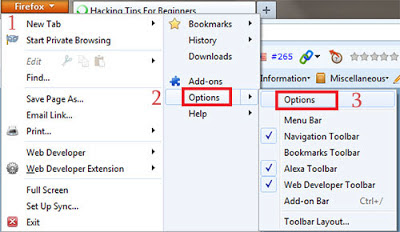
2. Then Click on FireFox > Option > Option as shown in below picture


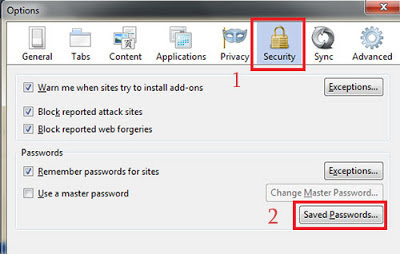
3. Then a POP Up box will appear, In that go to security and click on Show Passwords as show below.


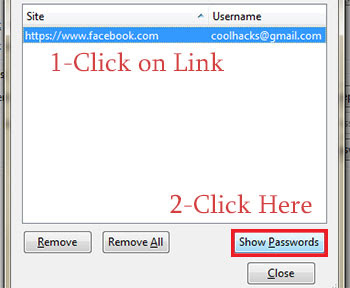
4. Now click on website whose password you want to see ans click on show password as shown in below image. (Note: It will ask for confirmation so click on yes when dialog box appears)


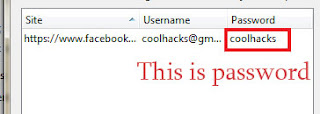
5. Done, You have hacked password of your victim with few simple steps. You can try this at school computer lab if someone have saved their password.

You Have Done By This .........

Get Free Unlimited 3G During 6 AM to 9 AM on Aircel

Aircel has been always ahead in slashing 3G prices. Aircel has came with very competitive and consumer friendly plan for all their services including Data. Still where the other Leading  Operators have Increased data prices by 200% and still Aircel still offers unlimited Data on their packs. and now user’s who are hungry to taste high speed Internet for free or readers who are fed up because no trick is working in their region then It is better to more to Aircel and get this Free Unlimited 3G daily for three Hours. this free subscription will be valid for one month.


Get up early everyday and enjoy your downloading and browsing this summer. follow the below instructions to active this free subscription for one month. the method to subscribe for this Freebie from aircel may differ from circle to circle hence you should get in touch with 121 Helpline for more information.

To get this Service on your Aircel mobile, you need to Run a USSD code ,

Dial *122*5*1# or *122*456# or *122*5#  and you will be receiving  a confirmation message instantly which will denote that your Free 3G in morning hours is activated for a month

Below is the confirmation message which you will receive instantly after dialing the USSD code

Manual Gprs Settings For All Indian Network


Here You Can Find Several GPRS settings For Vodafone, Idea, Airtel, BSNL, Airtel live and lots more.

Manual Reliance Smart GPRS Settings:
Settings for SMARTWAP:
Account Name: SMARTWAP
Access Point Name: SMARTWAP
Home Page: http://wap.rworld.co.in/gsm/index.wml
Wap Gateway Proxy IP: 97.253.29.199
Port: 8080

Settings for SMATRNET:
Account Name: SMARTNET
Access Point Name: smartnet
Home page: http://www.google.co.in
Wap Gateway Proxy IP: 97.253.29.199
Port: 8080

Settings for MMS:
Account Name: RTLMMS
Access Point Name: MMS
Homepage: http://10.114.0.5/mms/
Wapgateway IP: 10.114.0.13
Port: 9401
———————————————————————————————————

Manual Idea GPRS Settings:
Account Name: idea_GPRS
Username: leave Blank
Password: leave Blank
Homepage: http://wap.ideafresh.com
Proxy and Server adress: 010.004.042.045
Port: 8080
Databearer: GPRS / Packetdata
Access Point Name: imis
Internet Proxy: Enabled/yes
Authentication Type: Normal ———————————————————————————————————

Manual Vodafone GPRS Settings:
Account Name: Vodafone Live
User Name: leave Blank
Password: leave Blank
Proxy: Enabled/yes
Access Point Name: portalnmms (Mobile) / www (Pc)
Proxy: Enabled/yes.
Proxy and Server address: 010.010.001.100
Proxy Port: 9401 or 8080
Homepage: http://live.vodafone.in
Authentication Type: Normal ———————————————————————————————————

Manual Airtel GPRS Settings:
Account Name: Airtel_gprs
User Name: leave Blank
Password: leave Blank
Homepage: http://live.airtelworld.com
Proxy: Enabled/yes.
Proxy and Server Adress: 202.56.231.117
Proxy Port: 8080
Data Bearer: GPRS or Packet Data.
Access Point Name: airtelgprs.com
Authentication Type: Normal
Use preferred Access point: No ———————————————————————————————————

Manual Airtel live settings:
Account Name: Airtel_live
Homepage: http://live.airtelworld.com
Username: leave Blank
Password: leave Blank
Proxy: Enabled/yes
Proxy and Server Adress: 100.001.200.099
Access point Name: airtelfun.com
Proxy and Server Port: 8080
Data bearer: GPRS/ Packet Data
Authentication Type: Normal ———————————————————————————————————

Manual BPL GPRS Settings:
Account Name: BPL WAP
Username: leave blank
Password: leave blank
Proxy: Enabled/yes
Homepage: http://wap.mizone.bplmobile.com
Proxy and Server address: 10.0.0.10
Proxy and Server Port: 8080
Access Point Name: mizone
Data Bearer: GPRS/ Packetdata
Authentication Type: Normal ———————————————————————————————————

Manual BSNL North And West GPRS Settings:
Account Name: bsnlwap (North)
Account Name: bsnlnet (West)
Username: leave blank
Password: leave blank
Proxy: Enabled/yes
Homepage: http://wap.cellone.in
Proxy and Server address: 010.132.194.196
Proxy and Server Port: 8080
Access Point Name: wapnorth.cellone.in
Data bearer: GPRS/ Packetdata
Authentication Type: Normal ———————————————————————————————————

AIRCEL GPRS
Account Name–AIRCEL GPRS
Homepage–http://wap.google.com
Username–Blank Password–Blank
Proxy–disabled/no
Accespoint Name–aircelgprs
Proxy and Server Port–8080
Data bearer–GPRS/Packet
Data Authentication Type–Normal ———————————————————————————————————

TATA DOCOMO MANUAL GPRS SETTINGS

Docomo Dive in Account Name– DocomDive
Username–Blank
Password–Blank
Homepage–http://divein.tatadocomo.com
Proxy and Server Port–8080
Proxy and Server adress–10.124.94.7
Databearer–GPRS/Packetdata
Acces Point Name–TATA.DOCOMO.DIVE.IN
Proxy–Enabled/yes
Authentication Type–Normal

Internet Account Name–DocomNet
Username–Blank
Password–Blank
Homepage–http://wap.google.com
Proxy-Disabled/No
Databearer–GPRS/Packetdata
Acces Point Name–TATA.DOCOMO.INTERNET
Proxy–Enabled/yes
Authentication Type–Normal

MMS Account Name– DocomoMMS
Username–Blank
Password–Blank
Access point-TATA.DOCOMO.MMS
home page-http://mmsc/
Proxy-Enabled/Yes
proxy server-10.124.26.94
port-8799
Databearer–GPRS/Packetdata P
roxy–Enabled/yes
Authentication Type–Normal

Tuesday, 11 June 2013

How To Fix Problems In Windows 7

How To Fix Problems In Windows 7


Microsoft's Windows 7's knack for running without problems is a testament to it's stability.  Even Though it has a good reputation, problems do occur. Solving common Win7 problems requires Some basic troubleshooting, but most of these problems have relatively easy solutions that can Get you back to your regular computing activities in no time.


The screen is black when you start Win7:

Solution:  This panic inducing problem is often attributed to minor problems with your graphics Card or the cable that connects it to the monitor. First, check that your monitor is plugged into A power socket and that the monitor cable (either Video Graphics Array (VGA) or Digital Visual Interface (DVI)) is firmly connected to both the monitor and your computer's graphics Port. If the monitor flickers when moving the cable, there might be a problem with the cable Itself, so try a replacement cable if you have one.

 Another possibility is that your graphics card's drivers need to be updated (this is particularly Likely if you just installed Win7 and are booting into the operating system for the first time).  Restart your computer and press the ‘F8' key during the boot process. When the ‘Advanced Boot Options' screen appears, use the arrow keys to highlight ‘Enable Low Resolution Video (640x480)', press ‘Enter', and wait for Win7 to start. When it does, visit your graphics Card manufacturer's Web site and download the latest drivers for your card. Install the drivers And restart Win7. If your computer has integrated graphics instead of a discrete graphics Card, use ‘WindowsUpdate' (click ‘Start', click ‘All Programs', and click ‘Windows Update') to obtain the most recent drivers.


When upgrading from Vista, the Win7 installation process stops at 62%:

Solution:  Win7 can hang at various points during the installation process for different reasons, But one problem occurs more often than others. If your installation stops at precisely 62%, it's Likely because a service has stopped responding. To fix the problem, restart your computer And let it roll back to Vista. Once you're back in Vista, click ‘START', right click ‘COMPUTER' And click ‘PROPERTIES', Select ‘Advanced System Settings on the left menu. Choose the ‘Advanced' tab, click ‘Environment Variables', and click the ‘New' button under ‘System Variables'.

 Next, type ‘MIG_UPGRADE_IGNORE_PLUGINS' in the ‘Variable Name' field, type ‘IphlpsvcMigPlugin.dll' in the ‘Varible Value' field, and then click ‘OK'. Click ‘OK' to close the ‘Environment Variables box, click ‘OK' to close the ‘System Properties' box, and then shut down your computer. Repeat the Win7 upgrade process.


You're unable to join a homegroup:    

Solution:   Win7 has eased the home networking process through its use of homegroups, which Help automate network creation. However, if you're unable to join a homegroup on your Network, first make sure that a homegroup actually exists. If the homegroup was created On another computer, check to make sure the homegroup has been created on that computer And that it is turned on. After verifying that the homegroup does exist, check that you're Connected to the network by clicking the Network icon in your Taskbar. If you're not, click ‘Start'. Open the ‘Control Panel', click ‘Network' and ‘Internet', and open the ‘Network and Sharing Center'. Click ‘Connect To A Network' and follow the instructions to  connect to your Local network.

 If you're still unable to connect to the homegroup, make sure your network location is set to ‘Home' by opening the ‘Network And Sharing Center', clicking ‘Public Network' (or ‘Work Network'), and then clicking ‘Home Network'. You can also check to see if ‘Network Discovery' is turned off, which would prevent you from accessing the home network. In the Left panel of the ‘Network And Sharing Center', click ‘Change Advanced Sharing Settings', Click the ‘Down' arrow button to expand the ‘Home Or Work' profile, and select the ‘Turn On Network Discovery' radio button. Click ‘Save Changes' when finished.

 If you're still having problems, make sure the required homegroup-related services are Running. Click ‘Start', open the ‘Control Panel', select ‘System And Security', select ‘Administrative Tools', and double click ‘Services' (You may be prompted for an Admin password here, so make sure you have it handy before trying this step). Scroll to the ‘Homegroup Provider' service under the ‘Name' column and make sure "Started" appears  under the ‘Status' column. If it doesn't, double click the ‘Homegroup Provider' entry, click the ‘Start' button, and click 'OK'. Repeat this process for the ‘Peer Networking Grouping' service.


Windows is unable to install important updates:

Solution:  In most cases, the Win7 update process is seamless as it downloads and installs Important updates in the background. However, the OS occasionally encounters problems With the update process and cannot install certain updates. If this happens, try manually Updating by clicking ‘Start', clicking ‘All Programs', and clicking ‘Windows Update'. In the left pane, click ‘Check For Updates', and then click ‘Install Updates' afterWindows Finds the important update (or updates) it was previously unable to install. Note that some Updates require you to accept the Microsoft Software License Terms, so be sure to Accept the terms to ensure a successful update installation.

 Some updates can require a hefty amount of hard drive capacity, so Windows might have Problems if your primary hard drive is running low on space. If you have 500MB or less Of drive space left, run ‘Disk Cleanup' in the ‘Search' box, and press ‘Enter'. Select Your primary drive (usually C:) in the dropdown menu and click ‘OK'. Follow the Instructions to delete unnecessary files.


Win7 returns a message that access is denied when you try to open a file or folder:

Solution:  If Windows prevents you from opening a file or folder, check that you have Permission to open it. ‘Right click' the file or folder, click ‘Properties', choose the ‘Security' tab, and click ‘Users' under ‘Group Or User Names'. Under ‘Permissions', you'll see the permissions for ‘Users' (as opposed to Administrators) for that particular file or folder. If ‘Read' and/or ‘Write' are not selected under ‘Allow', you'll need to log in with an administrator account to access the file or folder or have the administrator of that computer change the permissions for the file or folder. If you have an admin account, you can choose to change the permissions yourself for your user account. To do so, choose ‘Users', click ‘Edit' on the ‘Security' tab, click to select the appropriate permissions, and click ‘OK'.


Win7 prevents you from logging in to your computer because your user account Is locked out:

Solution:  If someone tries to log in to your account too many times when using an Invalid password, Win7 will lock the account. Assuming you have a separate admin Account (and it is highly recommended that you do for security purposes), you can Log in to Windows using that administrator account and unlock the user account.

 Click ‘Start', type ‘lusrmgr.msc' in the ‘Search' box, and press ‘Enter' to launch The ‘Local Users And Groups' utility. Click to select the ‘Users' entry in the left pane, And double click the locked account in the right pane. On the ‘General' tab, click To deselect ‘Account Is Locked Out', click ‘OK', close the ‘Local Users And Group' utility, and log out of Windows . Log back in using the user account.


Win7 does not start after being in Sleep Mode:

Solution:  Microsoft's latest OS includes a wealth of power saving options, but they Don't always work as designed, especially when the OS is paired with certain Motherboards. If Win7 refuses to start after being in Sleep Mode, you can tweak The power options to prevent Win7 from sleeping. Reboot your computer and Open the ‘Control Panel', select ‘System And Security', open ‘Power Options'. Next to your selected ‘Power Plan' (for example, Balanced), click ‘Change Plan Settings', select ‘Never' in the drop down menu beside ‘Put The Computer To Sleep', and then click ‘Change Advanced Power Settings'. Click to expand the ‘Sleep' entry, click to expand the ‘Allow Hybrid Sleep' entry, click ‘On', and change the setting in the drop down menu to ‘Off'. Click ‘OK'.

 If you want your computer to go to sleep after a certain period, this solution will Serve only as a work around. Because this problem is often related to outdated Motherboard software, check your motherboard manufacturer's Web site for A BIOS (Basic Input/Output) update.


You're unable to print from a printer connected to your homegroup:

Solution:  First, check that the printer is plugged in and turned on. Next, make Sure that the person who connected the printer to the homegroup didn't change The sharing settings, because if the printer is no longer shared, you won't have Access to it through the homegroup. If the printer is active and being shared Through the homegroup, try printing directly to the printer from the computer To which it is connected. If the printer doesn't print from the host computer, You'll need to troubleshoot  the printer connection instead of the homegroup Issue. If none of these steps work, try rebooting both the host computer and Your computer. You can also try leaving the homegroup and rejoining.


You cannot open or copy files from the Web:

Solution:  Win7 is serious about security because plenty of threats exist on the Internet. Traditionally, Microsoft has been the lowest flying fruit for crackers And cybercriminals. When Win7 security controls are set too strictly, they Can prevent you from accessing files on the Web. To fix this problem, click ‘Start', type ‘Internet Options' in the ‘Search' box, and press ‘Enter'. Choose the ‘Security' tab, select the ‘Internet' zone, and move the slider under ‘Security Level For This Zone' to a lower level. For example, if the slider is set to ‘High', move it to ‘Medium High'. Click ‘OK when finished.

 If you're still having problems opening or copying Web files after changing this Level, move the security slider to a lower level. If this problem is occurring Only with a particular site, return to the ‘Security' tab in the ‘Internet Properties' dialog box and click the ‘Trusted Sites' zone. Next, click the ‘Sites' Button , copy the site's URL to the ‘Add This Website To The Zone' field, Click ‘Add', click ‘Close', and click ‘OK'.

How To Operate Computer Through Run Commands

How To Operate Computer Through Run Commands


Run command box is a beautiful application provided by windows operating system. You can operate every applications of your computer with the help of run commands.

Hey, do you know you can operate computer even with the help of run commands. You need not have to click every time with the help of mouse to open your documents or folders, just type a command in run dialogue box and enjoy whatever you wish to open or play.

Just open the run command box with the help of ‘windows key + R’ and type commands to do work according to your wish.


The lists of commands which will help you to operate your windows 7 computer are as follows,

For performing functions related with admin:

  • Add Hardware Wizard = hdwwiz.cpl
  • Administrative Tools = control admintools
  • Authorization Manager = azman.msc
  • Certificate Manager = certmgr.msc
  • Component Services = dcomcnfg
  • Direct X Troubleshooter = dxdiag
  • Display Languages = lpksetup
  • File Signature Verification Tool = sigverif
  • Group Policy Editor = gpedit.msc
  • Iexpress Wizard = iexpress
  • Iscsi Initiator = iscsicpl
  • Local Security Settings = secpol.msc
  • Microsoft Management Console = mmc
  • Microsoft Support Diagnostic Tool = msdt
  • ODBC Data Source Administrator = odbcad32
  • People Near Me = p2phost
  • Print management = printmanagement.msc
  • Printer User Interface = printui
  • Problems Steps Recorder = psr
  • Registry Editor = regedit or regedt32
  • Resoure Monitor = resmon
  • Resultant Set of Policy = rsop.msc
  • System Configuration Utility = msconfig
  • SQL Server Client Configuration = cliconfg
  • Task Manager = taskmgr
  • TPM Security Hardware = TpmInit
  • TPM Security Hardware = TpmInit
  • Trusted Platform Module = tpm.msc
  • Windows Firewall with Advanced Security = wf.msc
  • Windows Malicious Removal Tool = mrt
  • Windows Memory Diagnostic = MdSched
  • Windows Remote Assistance = msra
  • Windows Script Host Settings = wscript
  • Windows Share Folder Creation Wizard = shrpubw
  • Windows Standalong Update Manager = wusa
  • Windows System Security Tool = syskey
  • Windows Version = winver

For performing functions related with accessories:

  • Calculator = calc
  • Character Map = charmap
  • Command Prompt = cmd
  • Connect to a Network Projector = NetProj
  • Connect to a Projector = displayswitch or Windows logo key + P
  • Defragment User Interface = dfrgui
  • Disk Cleanup Utility = cleanmgr
  • Ditilizer Calibration Tool = tabcal
  • Ease of Access Center = utilman or Windows logo key + U
  • Internet Explorer = iexplore
  • Internet Explorer (No Add-ons) = iexplore -extoff
  • Internet Explorer (No Home) = iexplore about:blank
  • Locks User Account = Windows logo Key + L
  • Logs out of Windows = logoff
  • Magnifier = magnify
  • Microsoft Paint = mspaint.exe
  • Narrator = Narrator
  • Notepad = notepad
  • On Screen Keyboard = osk
  • Open Documents folder = documents
  • Open Downloads folder = downloads
  • Open Favorites folder = favorites
  • Open Music folder = music
  • Open Pictures folder = pictures
  • Open Recent folder = recent
  • Open Videos folder = videos
  • Phone Dialer = dialer
  • Presentation Settings = PresentationSettings
  • Printer Migration = PrintBrmUi
  • Private Character Editor = eudcedit
  • Rating System = ticrf
  • Remote Desktop Connection = mstsc
  • Run = Windows logo key + R
  • Snipping Tool = snippingtool
  • Sound Recorder = soundrecorder
  • Sticky Note = StikyNot
  • Sync Center = mobsync
  • System Information = msinfo32
  • System Restore = rstrui
  • Windows Easy Transfer = migwiz
  • Windows Explorer = explorer or Windows logo key + E
  • Windows Fax and Scan = wfs
  • Windows Fax and Scan Cover Page Editor = fxscover
  • Windows Image Acquisition = wiaacmgr
  • Windows Media Player = wmplayer
  • Windows Media Player DVD Player = dvdplay
  • Windows Mobility Center (Only on Laptops) = mblctr or Windows logo key + X
  • Windows PowerShell = powershell
  • Windows PowerShell ISE = powershell_ise
  • Wordpad = write
  • XPS Viewer = xpsrchvw
For performing functions related with computer management:

  • Computer Management = compmgmt.msc or CompMgmtLauncher
  • Device Manager = devmgmt.msc
  • Disk Management = diskmgmt.msc
  • Event Viewer = eventvwr.msc
  • Local Users and Groups = lusrmgr.msc
  • Performance Monitor = perfmon.msc
  • Services = services.msc
  • Shared Folders/MMC = fsmgmt.msc
  • Task Scheduler = control schedtasks
  • Windows Management Infrastructure = wmimgmt.msc

For performing functions related with control panel:
  • Action Center= wscui.cpl
  • Autoplay = control.exe /name Microsoft.autoplay
  • Backup and Restore = sdclt
  • BDE Administrator = bdeadmin.cpl
  • Cleartype Text Tuner = cttune
  • Color Management = colorcpl
  • Control Panel = control
  • Create a System Repair disc = recdisc
  • Credential Manager = control.exe /name Microsoft.CredentialManager
  • Credential Manager Stored User Names and Passwords = credwiz
  • Date and Time Properties = timedate.cpl
  • Default Programs = control.exe /name Microsoft.DefaultPrograms
  • Devices and Printers = control printers
  • Devices and Printers Add a Device = DevicePairingWizard
  • Display = dpiscaling
  • Display Color Calibration = dccw
  • Encryption File System = rekeywiz
  • Folders Options = control folders
  • Fonts = control fonts
  • Getting Started = GettingStarted
  • HomeGroup = control.exe /name Microsoft.HomeGroup
  • Indexing Options = control.exe /name Microsoft.IndexingOptions
  • Internet Properties = inetcpl.cpl
  • Keyboard = control keyboard
  • Location Notifications = LocationNotifications
  • Location and Other Sensors = control.exe /name Microsoft.LocationandOtherSensors
  • Mouse = control mouse or main.cpl
  • Network and Sharing Center = control.exe /name Microsoft.NetworkandSharingCenter
  • Network Connections = control netconnections or ncpa.cpl
  • Notification Area Icons = control.exe /name Microsoft.NotificationAreaIcons
  • Optional Features Manager = optionalfeatures or control appwiz.cpl,,2
  • Parental Controls = control.exe /name Microsoft.ParentalControls
  • Performance Information = control.exe /name Microsoft.PerformanceInformationandTools
  • Personalization = control desktop
  • Phone and Modem Options = telephon.cpl
  • Power Configuration = powercfg.cpl
  • Programs and Features = appwiz.cpl or control appwiz.cpl
  • Recovery = control.exe /name Microsoft.Recovery
  • Regional and Language = intl.cpl
  • RemoteApp = control.exe /name Microsoft.RemoteAppandDesktopConnections
  • Set Program Access and Computer Defaults = control appwiz.cpl,,3 or ComputerDefaults
  • Screen Resolution = desk.cpl
  • Sound = mmsys.cpl
  • SP Advanced Tab = SystemPropertiesAdvanced
  • SP ComputerName Tab = SystemPropertiesComputerName
  • SP Data Execution Prevention = SystemPropertiesDataExecutionPrevention
  • SP Hardware Tab = SystemPropertiesHardware
  • SP Performance = SystemPropertiesPerformance
  • SP Protection Tab = SystemPropertiesProtection
  • SP Remote Tab = SystemPropertiesRemote
  • System Properties = sysdm.cpl or Windows logo key + Pause/Break
  • Taskbar and Start Menu = control.exe /name Microsoft.TaskbarandStartMenu
  • Troubleshooting = control.exe /name Microsoft.Troubleshooting
  • User Accounts = control.exe /name Microsoft.UserAccounts
  • User Account Control Settings = UserAccountControlSettings
  • User Accounts Windows 2000/domain version = netplwiz or control userpasswords2
  • Volume Mixer = sndvol
  • Windows Activation = slui
  • Windows Activation Phone Numbers = slui 4
  • Windows Anytime Upgrade = WindowsAnytimeUpgradeui
  • Windows Anytime Upgrade Results = WindowsAnytimeUpgradeResults
  • Windows CardSpace = control.exe /name Microsoft.cardspace
  • Windows Color and Appearance = control color
  • Windows Firewall = firewall.cpl
  • WindowsSideshow = control.exe /name Microsoft.WindowsSideshow
  • Windows Update App Manager = wuapp

Thursday, 6 June 2013

How to write symbols with keyboard

How To Send Unlimited SMS's With Your Android Mobile

Today i am writing a post for those android mobile users who wishes to send unlimited SMS's , now you don't have to worry about government putting a limit on SMS's.

People who are familiar with android phones must have used many applications for different purposes, now i am going to tell you which application you can use to send as many SMS's you want to any number using your accounts on free online SMS sites like way2sms.com , ultoo.com and many others.


Free SMS India is the application about which i am talking right now. Read the Official description of the application as stated below

"Don’t pay for SMS packs when you can send them for FREE!
Send unlimited SMS for free right from your Android Phone!
Free SMS India is Android application by which you can send SMS to anybody all over India without spending single penny. User Interface of Free SMS India is very sleek and simple, even a kiddy can operate the app.
All you need is working GPRS connection to send SMS. Application is optimized to decrease data usage and your SMS is sent in few Kb of data."

https://play.google.com/store/apps/details?id=util.sms

How to create a Bootable pen drive

A boot able pen drive comes with lot of advantages. It can be used to run an anti virus program in case your hard disk is already under virus or malware attack. Apart from that installation speeds are greatly improved when we install from a flash drive and a pen drive is handy and convenient to carry around unlike DVD. Apart from that it becomes possible to install the softwares even on those systems that do not have a DVD/CD drives, such as a Netbook. But you don't know how to create a bootable flash or pen drive. Don't worry help is at hand. It is very easy and we will guide you  to a step by step process to create a bootable pen drive.
Basically you may achieve your goal by two ways. First is to install a software which on it's own make you pen drive Bootable or do it manually using windows command prompt. For the software mode follow to below given link to download the software and follow the instructions.

http://www.microsoftstore.com/store/msusa/en_US/DisplayHelpPage


Manual Method to make you pen drive bootable:
Take a you pen drive (at least having 4 GB space). Insert it into USB port and format it.
 Type in CMD in Start menu search field and hit Ctrl + Shift + Enter. Alternatively, navigate to Start > All programs >Accessories > right click on Command Prompt and select run as administrator or open RUN ,type cmd and hit enter.
As soon as the command prompt opens type in the following commands:
DISKPART+ENTER.
LIST DISK+ENTER.
List disk command will list down all the disks available on your system at that point of time with a number allocated to each disk.
Now you have to figure out your pen drive's disk number and then type the following commands:
SELECT DISK X (Replace DISK X with your pen drive's disk number)
CLEAN
CREATE PARTITION PRIMARY
SELECT PARTITION 1
ACTIVE
FORMAT FS=NTFS (Format process may take few seconds)
ASSIGN
EXIT, Bootable USB, minimise the command window.
Insert your Windows DVD in the optical drive and note down the drive letter of the optical drive and USB media. Here I am using “D” as my optical (DVD) drive letter and “H” as my USB drive letter.
Go back to command prompt and execute the following commands:
D:CD BOOT and hit enter. Where “D” is your DVD drive letter.
CD BOOT and hit enter to see the below message.
BOOTSECT.EXE/NT60 H: (Where “H” is your USB drive letter)
Transfer or copy the windows DVD/CD contents to bootable pen drive. Now you have a completely bootable pen drive.
Important Message: When we make a pen drive bootable we convert it into NTFS format from FAT 32,this in turn makes USB loose its efficiency. So if you guys really love your pen drives then this process should be avoided.

Sunday, 2 June 2013

Get Rid of the Recycle Bin on your Desktop


Here is a way to remove the recycle bin from your desktop. This trick help’s people who want to get rid of the recycle bin on the desktop.


1. Goto start, Run, Type “gpedit.msc” (Type without quotes)

2. On the left panel, under User Configuration expand the tree Administrative templates

3. Click on the subtree desktop (single click, do not expand it)

4. On the right panel, Select the option-Remove Recycle Bin icon from desktop properties

5. Double click the option, on the settings tab just select the option enabled, press OK & exit the window.

6. Refesh the desktop (press F5), Your Recycle Bin vanishous. If not you need to logout and then re-login.

NOTE: This trick works on Win XP, Vista and Win 7

How to Hack Windows Administrator Password?


This hack will show you how to reset Windows administrator password (for Win 2000, XP, Vista and Win 7) at times when you forget it or when you want to gain access to a computer for which you do not know the password.


Most of us have experienced a situation where in we need to gain access to a computer which is password protected or at times we may forget the administrator password without which it becomes impossible to login to the computer. So here is an excellent hack using which you can reset the password or make the password empty (remove the password) so that you can gain administrator access to the computer. You can do this with a small tool called  Offline NT Password & Registry Editor. This utility works offline, that means you need to shut down your computer and boot off your using a floppy disk, CD or USB device (such as pen drive). The tool has the following features.
You do not need to know the old password to set a new one
Will detect and offer to unlock locked or disabled out user accounts!
There is also a registry editor and other registry utilities that works under linux/unix, and can be used for other things than password editing.

How it works?

Most Windows operating systems stores the login passwords and other encrypted passwords in a file called sam (Security Accounts Manager). This file can be usually found in \windows\system32\config. This file is a part of Windows registry and remains inaccessible as long as the OS is active. Hence it is necessary that you need to boot off your computer and access this sam file via boot. This tool intelligently gains access to this file and will reset/remove the password associated with administrator or any other account.

The download link for both CD and floppy drives along with the complete instructions is given below
Offline NT Password & Reg Editor Download

It is recommended that you download the CD version of the tool since floppy drive is outdated and doesn’t exist in today’s computer. Once you download you’ll get a bootable image which you need to burn it onto your CD. Now boot your computer from this CD and follow the screen instructions to reset the password.

Another simple way to reset non-administrator account passwords

Here is another simple way through which you can reset the password of any non-administrator accounts. The only requirement for this is that you need to have administrator privileges. Here is a step-by-step instruction to accomplish this task.

1. Open the command prompt (Start->Run->type cmd->Enter)

2. Now type net user and hit Enter

3. Now the system will show you a list of user accounts on the computer. Say for example you need to reset the password of the account by name John, then do as follows

4. Type net user John * and hit Enter. Now the system will ask you to enter the new password for the account. That’s it. Now you’ve successfully reset the password for John without knowing his old password.

So in this way you can reset the password of any Windows account at times when you forget it so that you need not re-install your OS for any reason. I hope this helps.

How to Use Windows 7 Without Activation?


Most of you might be aware of the fact that it is possible to use Windows 7 and Vista for 120 days without activation. This is actually possible using the slmgr -rearm command which will extend the grace period from 30 days to 120 days. However in this post I will show you a small trick using which it is possible to use Windows 7 without activation for approximately an year! Here is a way to do that.

1. Goto “Start Menu -> All Programs -> Accessories” . Right click on “Command Prompt” and select “Run as Administrator“. If you are not the administrator then you are prompted to enter the password, or else you can proceed to step-2.


2. Now type the following command and hit enter

slmgr -rearm

3. You will be prompted to restart the computer. Once restarted the trial period will be once again reset to 30 days. You can use the above command for up to 3 times by which you can extend the trial period to 120 days without activation.

4. Now comes the actual trick by which you can extend the trial period for another 240 days. Open Registry Editor (type regedit in “Run” and hit Enter) and navigate to the following location

HKEY_LOCAL_MACHINE\SOFTWARE\Microsoft\Windows NT\CurrentVersion\SoftwareProtectionPlatform

5. In right-side pane, change value of SkipRearm to 1.

6. Now you will be able to use the slmgr -rearm command for another 8 times so that you can skip activation process for another 240 days. So you will get 120 + 240 = 360 days of free Windows 7 usage.

120 days using “slmgr -rearm” command before registry edit +                                                                                                                                                                
240 days using “slmgr -rearm” command after registry edit
 =      360 Days

How to Enable or Disable Hibernation in Windows 7?


Enabling or Disabling the “Hibernate” option in Windows 7 or Vista is not as simple as it used to be in Windows XP. For Windows 7 a different approach has to be followed to accomplish the same job. In this post you will find how to enable or disable the Hibernate option in Windows 7.

Hibernation is a power saving option which was designed primarily for laptops. Unlike “sleep mode” which puts the open documents and files into the memory, hibernation puts all the open files and documents on to the hard disk and shuts down the computer without drawing even a small amount of power. Thus hibernation becomes an excellent way to save power and resume Windows back to the state where it was left off. If you really want to use this feature on Windows 7 then you need to enable this option. This can be done as follows.


1. Open the Command Prompt with “Administrator rights”. To do so, type cmd in Start menu and then hit Ctrl+Shift+Enter.

2. Now type the following command in the command prompt and hit Enter.
powercfg /hibernate on
3. Type exit and hit Enter to close the Command Prompt. Now you should see the “Hibernate” option in the Start menu. If not then perform the following steps.

A. Type Power Options in the Start menu and hit Enter.

B. In the left pane, open the link labeled “Change when the computer sleeps” and then open the link “Change advanced power settings”.

Now a small window will pop-up as shown below:


C. Now expand the Sleep tree and turn off Allow Hybrid Sleep as shown in the above screenshot.

D. Now you should see the Hibernate option in the Start menu.